
Domain access
Cloudflare
Invite Keystone as a member of your Cloudflare account with Domain Administrator rights on the relevant domain.
Cloudflare's member invitations are scoped: you can grant access to a single domain rather than the whole account.
- Log in to your Cloudflare account.
- On the home page, scroll to the bottom of the left column and click Manage Account.
- In the expanded section, click Members.
- Click + Invite Members.
- Enter
growthpartners@keystone.appunder email addresses. In the first dropdown choose Individual Domains, under Applies to select the relevant domain, and toggle on Domain Administrator. - Scroll to the bottom and click Create policy.
- Once the policy is listed, scroll down and click Invite members.
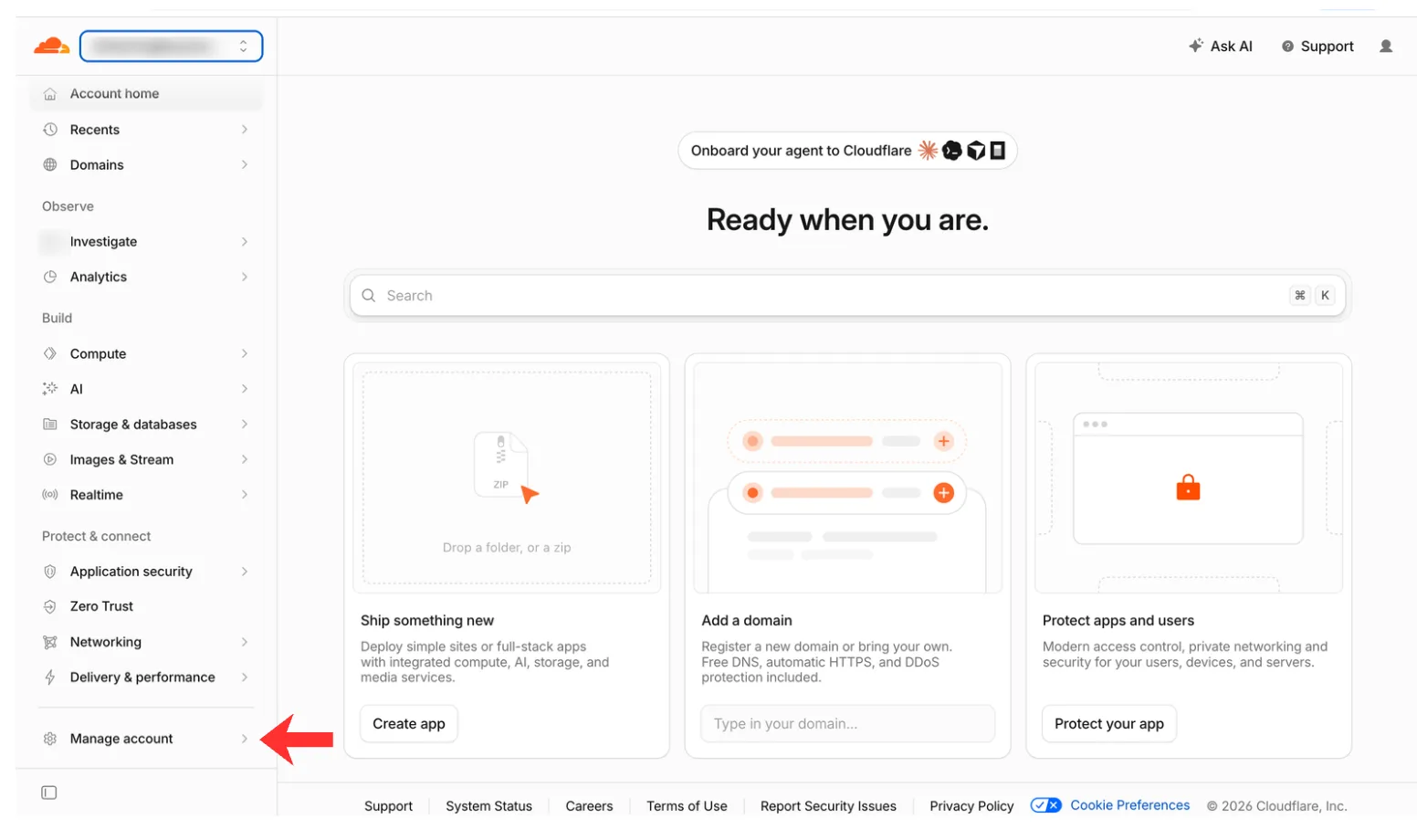
Step 2: Manage Account.
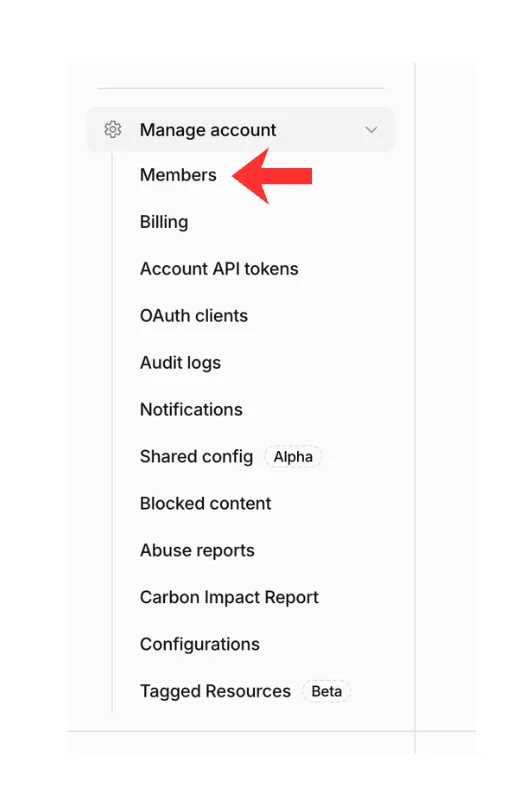
Step 3: Members.
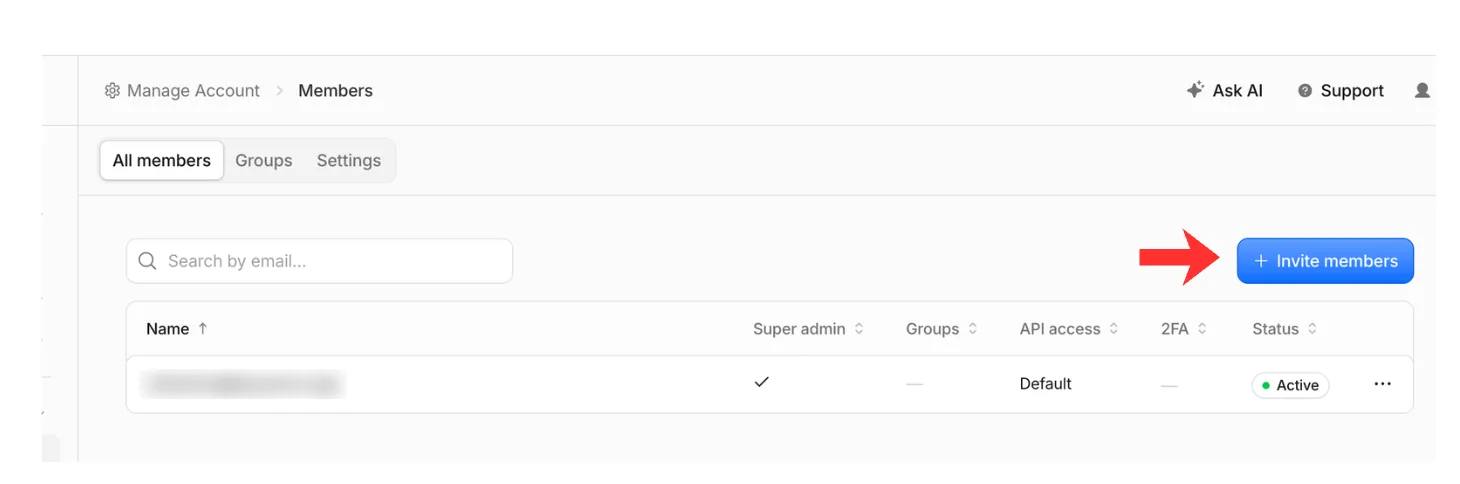
Step 4: Invite members.
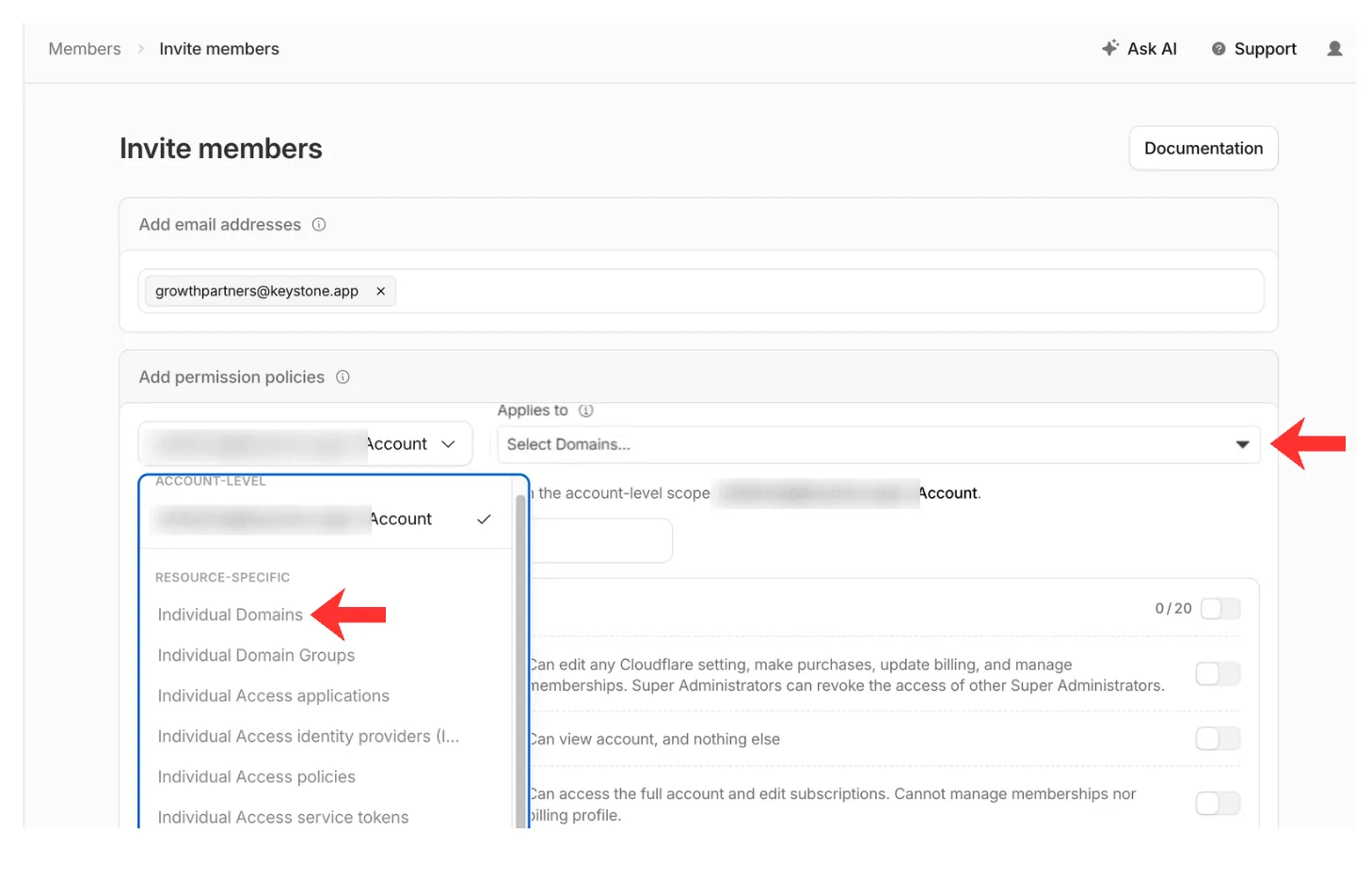
Step 5: Individual Domains, then the domain.
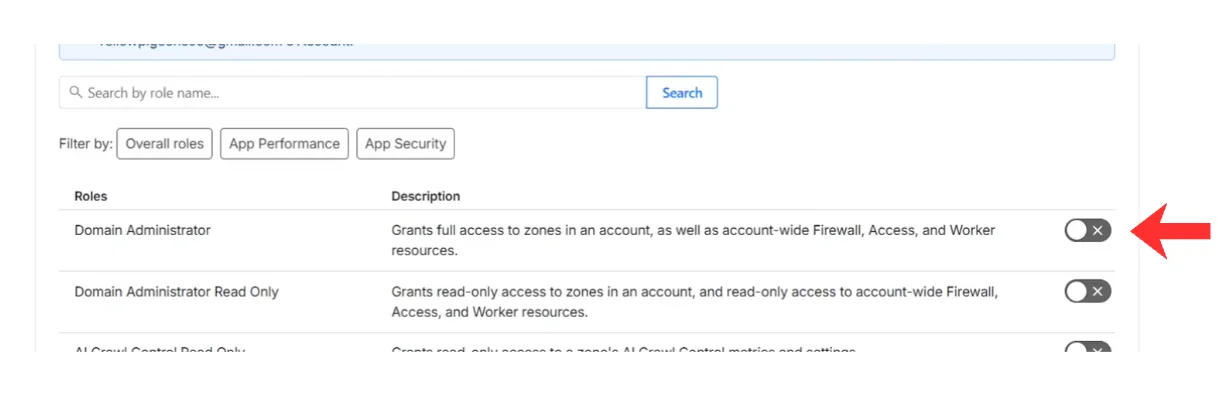
Step 5: Domain Administrator.
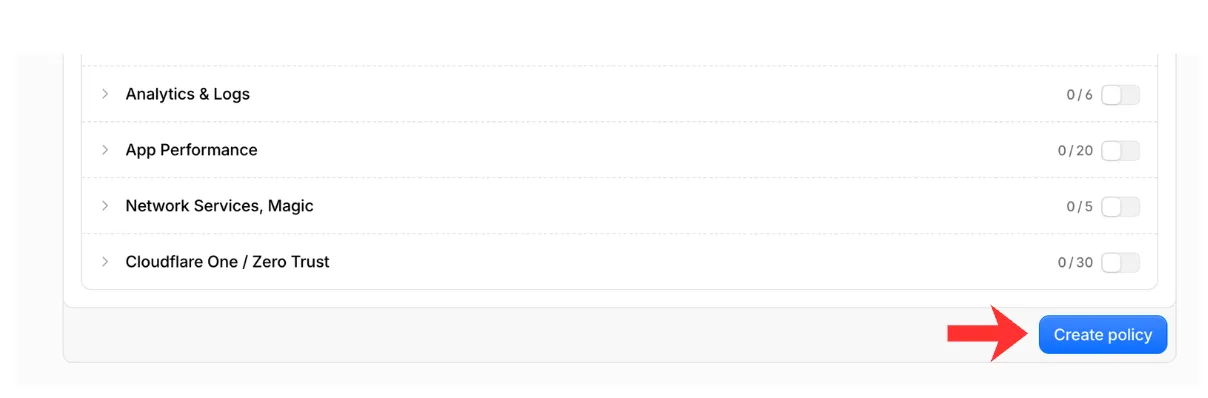
Step 6: Create policy.
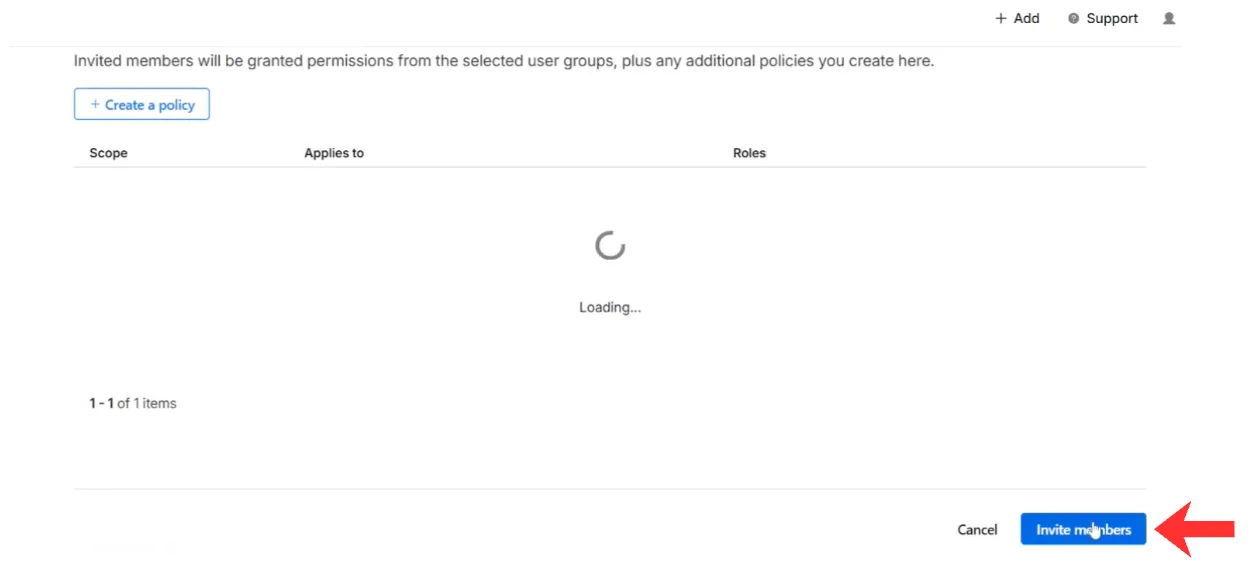
Step 7: Invite members.
We accept the invitation and let your Growth Partner know. From there we connect the domain and confirm when the site is live; see what we change.