
Getting set up
Accepting your invitation
Create your Keystone account from the invitation email and sign in for the first time.
Your Growth Partner adds you to your business on Keystone, and you receive an invitation by email. The invitation expires after 7 days; if yours has, ask your Growth Partner to send another.
- Open the email titled You've been invited to join … on Keystone and click Accept invitation. If you cannot find it, check your spam or junk folder. The email also carries the same link as text, in case the button does not work in your mail client.
- You arrive at the console's Create Account page with your email filled in. Enter your first and last name, choose a password that meets the listed rules (8 characters, one uppercase, one lowercase, one number, one symbol), and click Create account.
- Sign in with the email and password you just set.
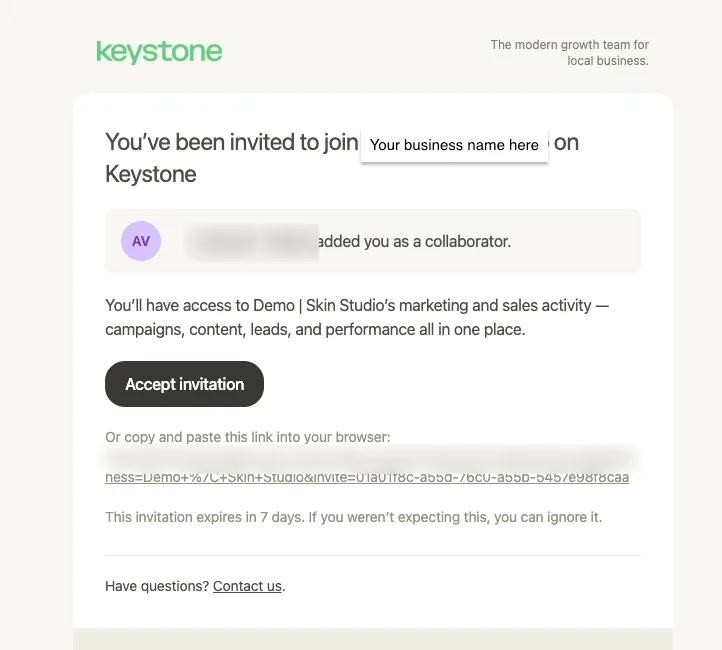
The invitation. The button and the plain link lead to the same place.
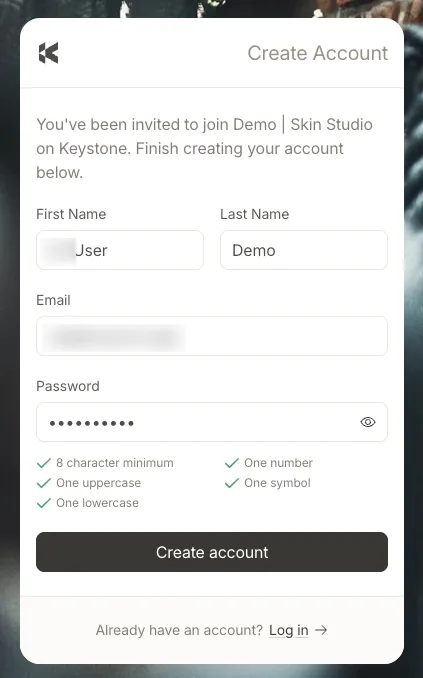
Your email is already filled; you choose a name and a password.
After you sign in
The console opens on your business. Navigating the console explains the layout. If you have been invited to more than one business, the switcher at the top left moves between them.
Inviting your own team
Once you are in, you can invite colleagues yourself from Settings → Users. Each person gets the same kind of invitation.