
Contacts
A contact
The contact card and the message thread side by side, with Mark handled and a composer.
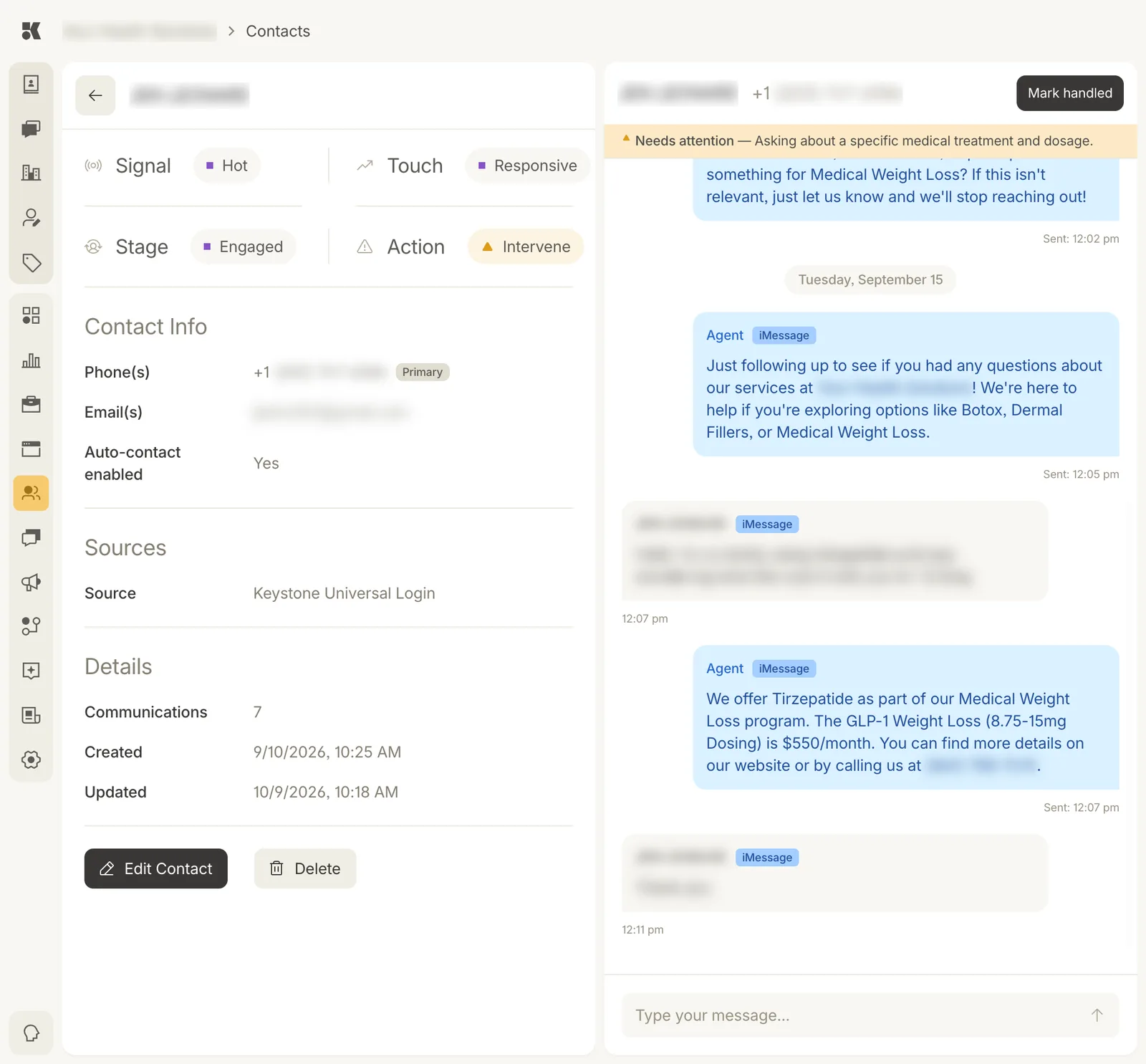
Card on the left, thread on the right. The banner says why the agent stopped.
The card
- Signal, Touch, Stage, Action: the four labels, each a menu you can change. See Signals, touch, and stage.
- Contact Info: phones (one marked Primary), emails, and Auto-contact enabled.
- Sources: where the contact came from: a form, web chat, an import, a call, or Keystone Universal Login (they signed in on your site).
- Details: number of communications, created and updated dates.
- Edit Contact and Delete.
The thread
Every message with this person across channels, in order, each labelled Agent or the contact's name and tagged with its channel (iMessage, SMS, Web chat, Email). The same thread is reachable from Conversations.
A yellow Needs attention banner states why the agent handed this one to you.
Replying
Type into Type your message… and send. Your message goes out on the thread's channel, and the agent stands down on this contact until you mark it handled. Keep it short; it is a text.
Mark handled
Clears the attention flag and lets the agent resume. If the person asked for a human, change Auto-contact enabled to No first.