
Getting started
Navigating the console
The left rail, the breadcrumb, the section switcher, and how to move between businesses.
The rail
The icons down the left edge are the eleven areas, always in the same order: Workstream, Analytics, Business Info, Website, Contacts, Conversations, Ads, Social, Listings, Content, Settings. The highlighted icon is where you are. Hover any icon for its name.
The bell at the bottom of the rail holds notifications.
The breadcrumb
The top of every page reads Business › Area › Section. The last crumb is a menu: on a page with sections (Business Info, Website, Analytics, Settings) click it to jump to a sibling section without going back to the rail.
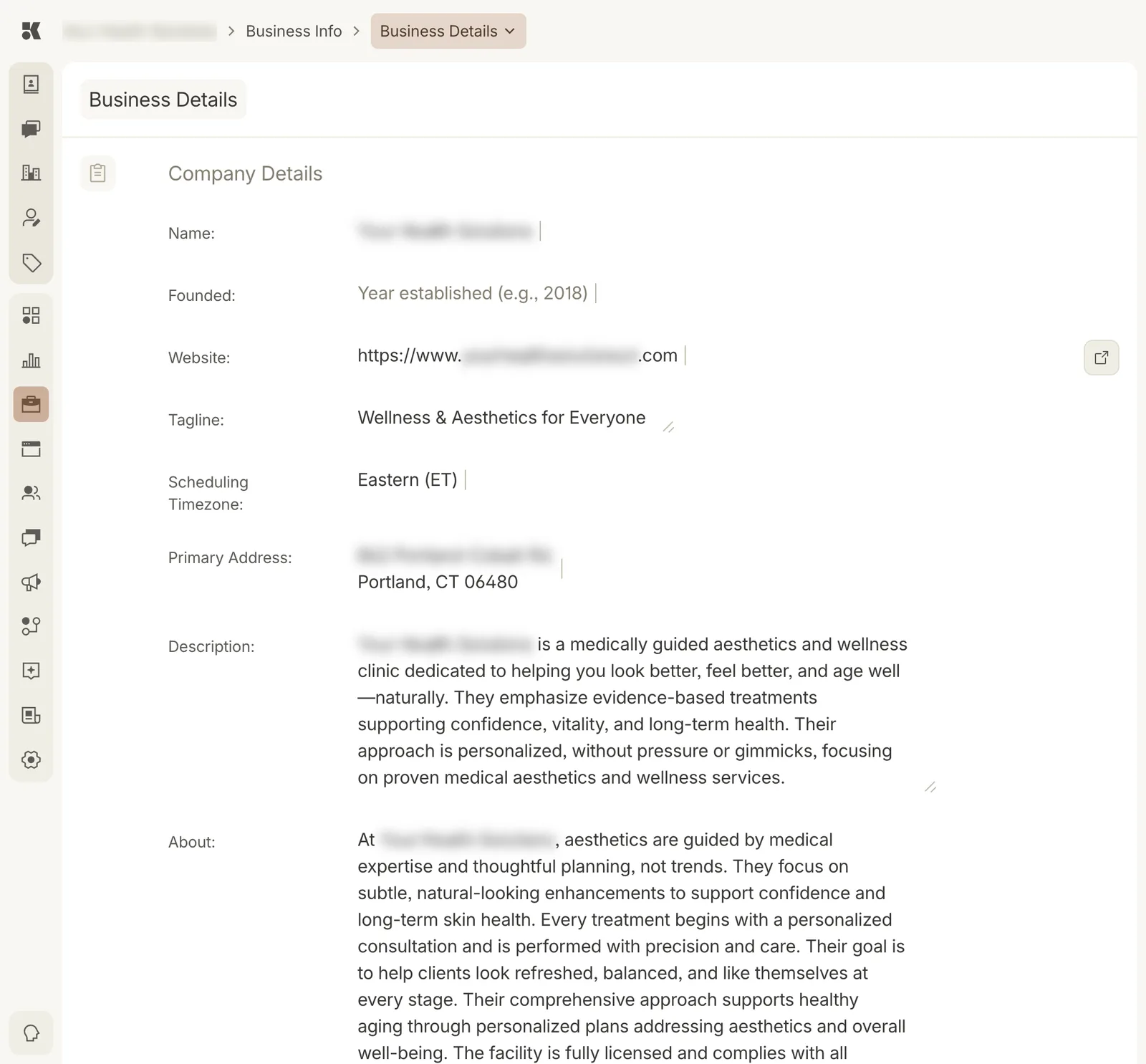
The last crumb opens the section switcher for the current area.
Sections inside an area
Four areas are split into sections, each its own page:
- Business Info: Business Details, Industry Info, Services, Service Items, Packages, Locations, Team, FAQ, Jobs, Media Library, Legal, Change History.
- Website: Website Editor, Status, Site Assets, Custom Forms, Domain, History, Integrations.
- Analytics: Overview, Website, Maps, Ads, Content.
- Settings: Users, Agents, Integrations, Import Data, Billing.
The other areas are a single page with a list on the left and a detail panel on the right.
Switching businesses
If you belong to more than one business, the breadcrumb's first crumb (the business name) opens a Switch business list. Pick one and every area reloads for it. The URL carries the business id, so a link someone sends you opens the right business.
Keyboard and layout
The console is built for a laptop or desktop browser. Lists are paged with Back and Next at the foot of the list; detail panels scroll independently of the list beside them.