
Domain access
Wix
Invite Keystone as a collaborator on your Wix site with the Domain Manager role.
Wix grants access per site. Invite Keystone as a collaborator and give it the Domain Manager billing role, which allows connecting and managing domains but not making purchases.
- Log in to Wix and select the relevant site.
- On the site's home page, click Settings at the bottom of the left menu.
- Scroll to the General section and click Roles & Permissions.
- Click Invite Collaborators on the right.
- Enter
growthpartners@keystone.appas the email address. - Scroll down to Billing Roles and tick Domain Manager.
- Scroll to the bottom and click Send Invite.
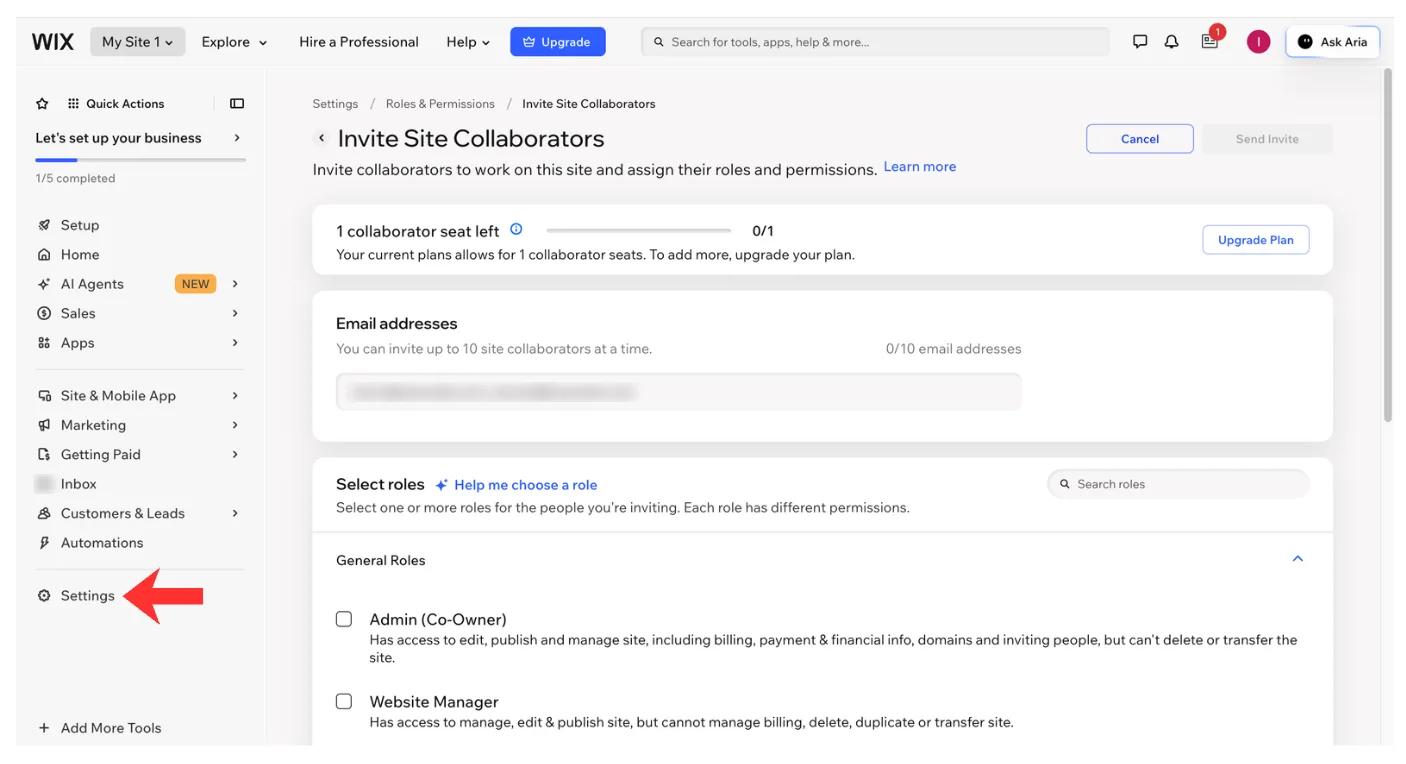
Step 2: Settings.
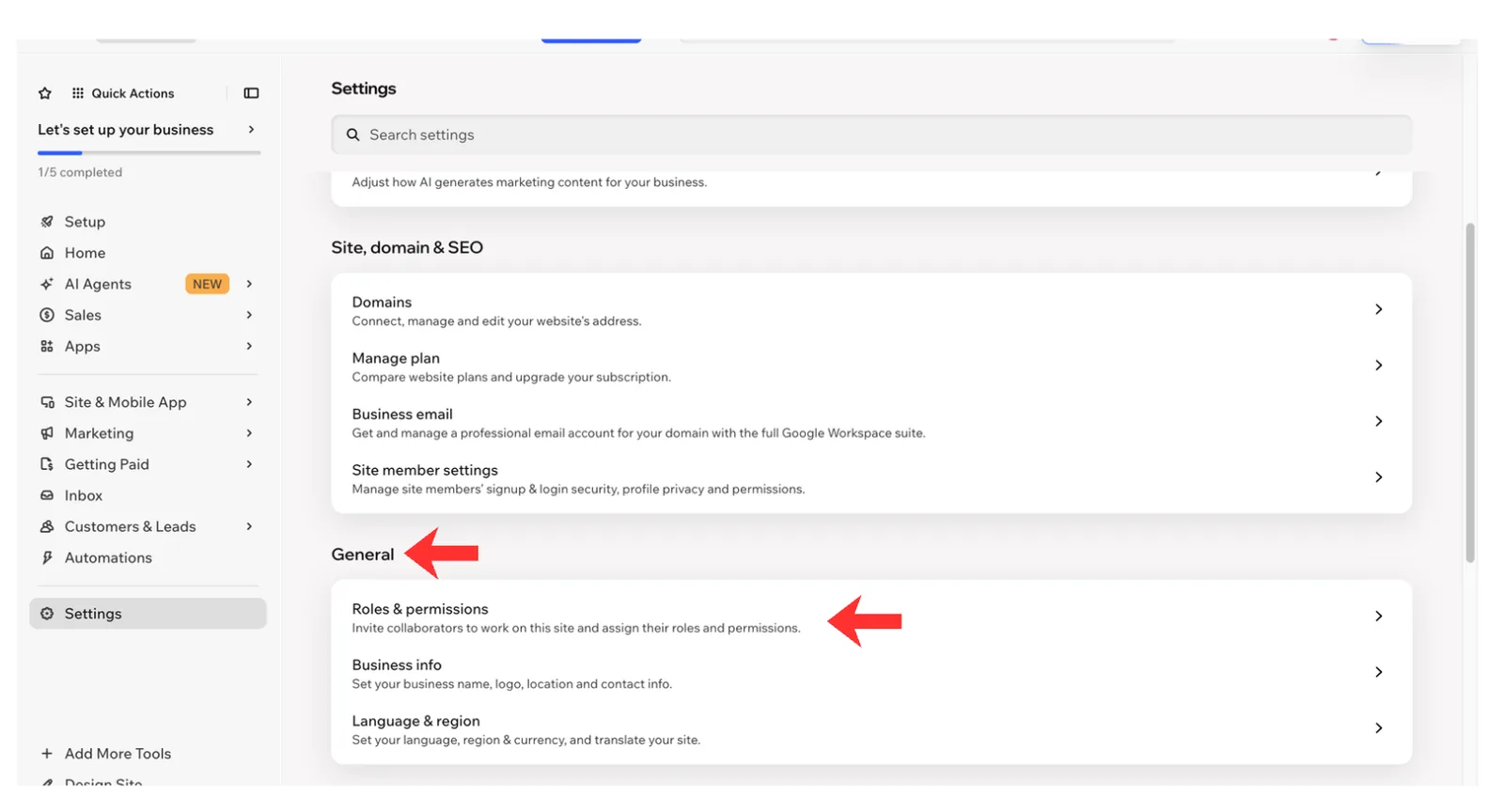
Step 3: Roles & Permissions.
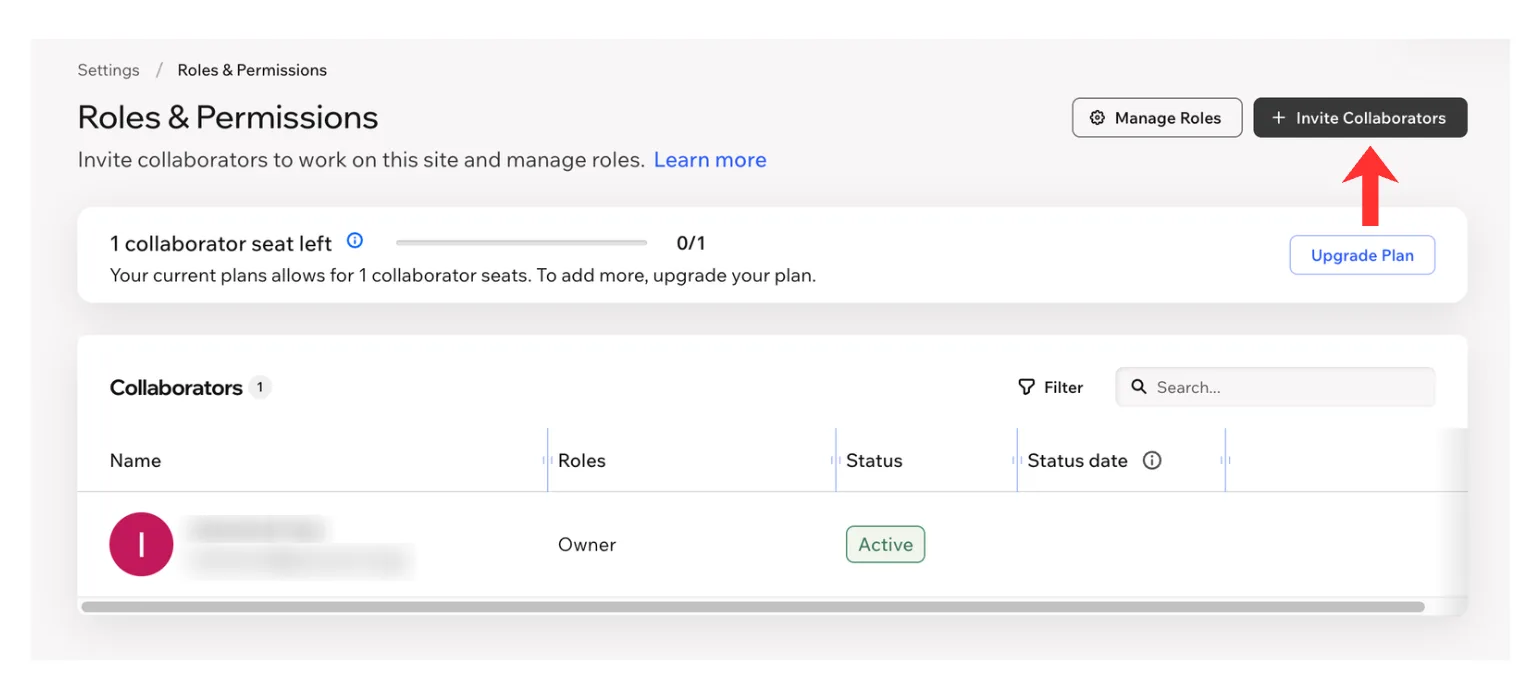
Step 4: Invite Collaborators.
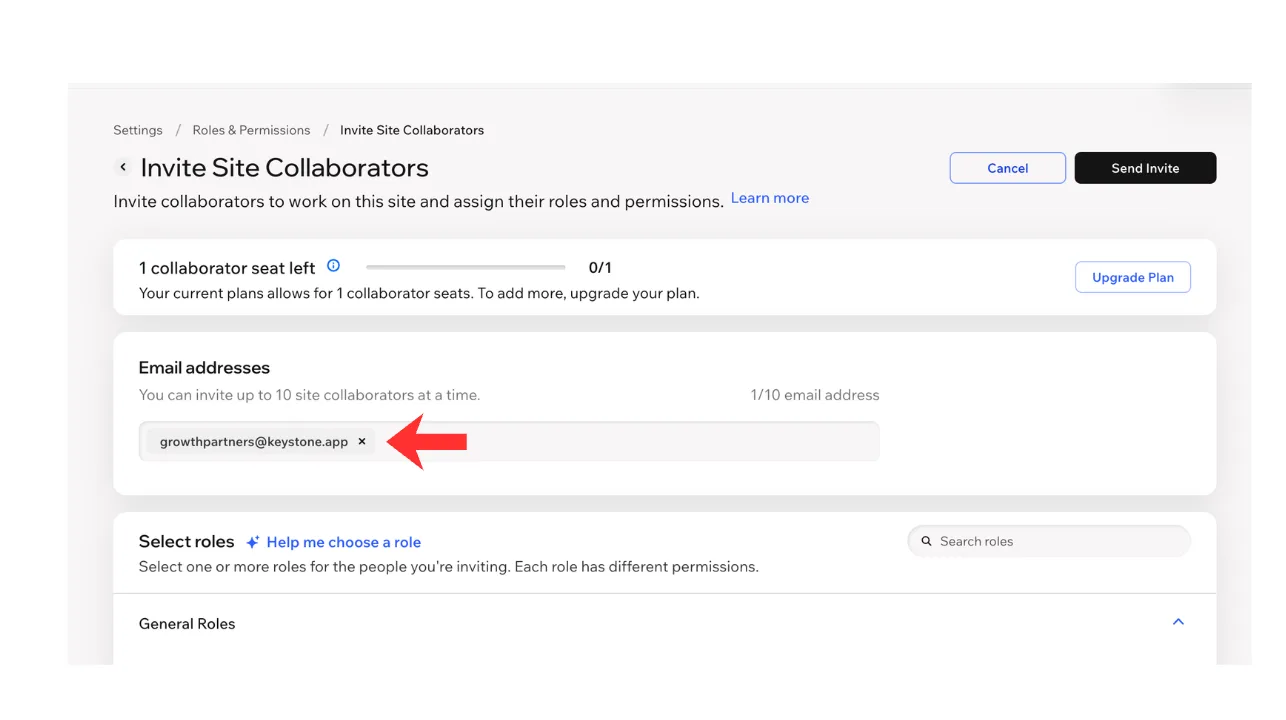
Step 5: growthpartners@keystone.app.
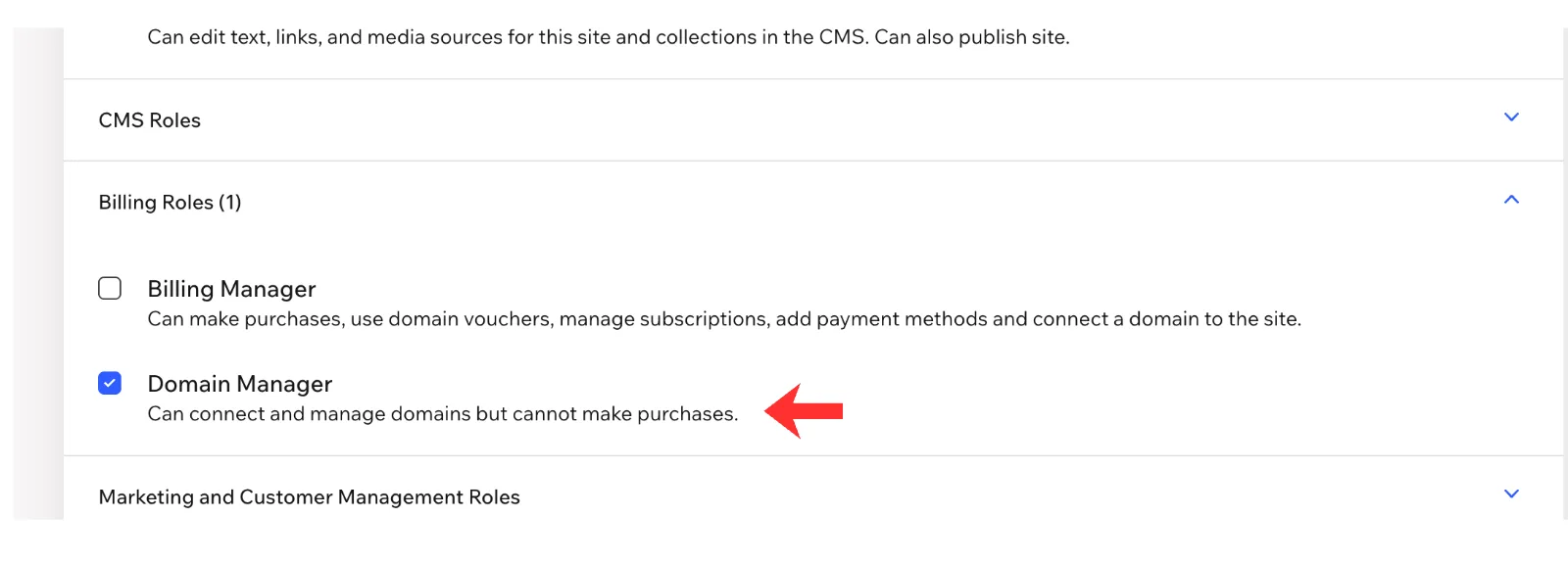
Step 6: Domain Manager.
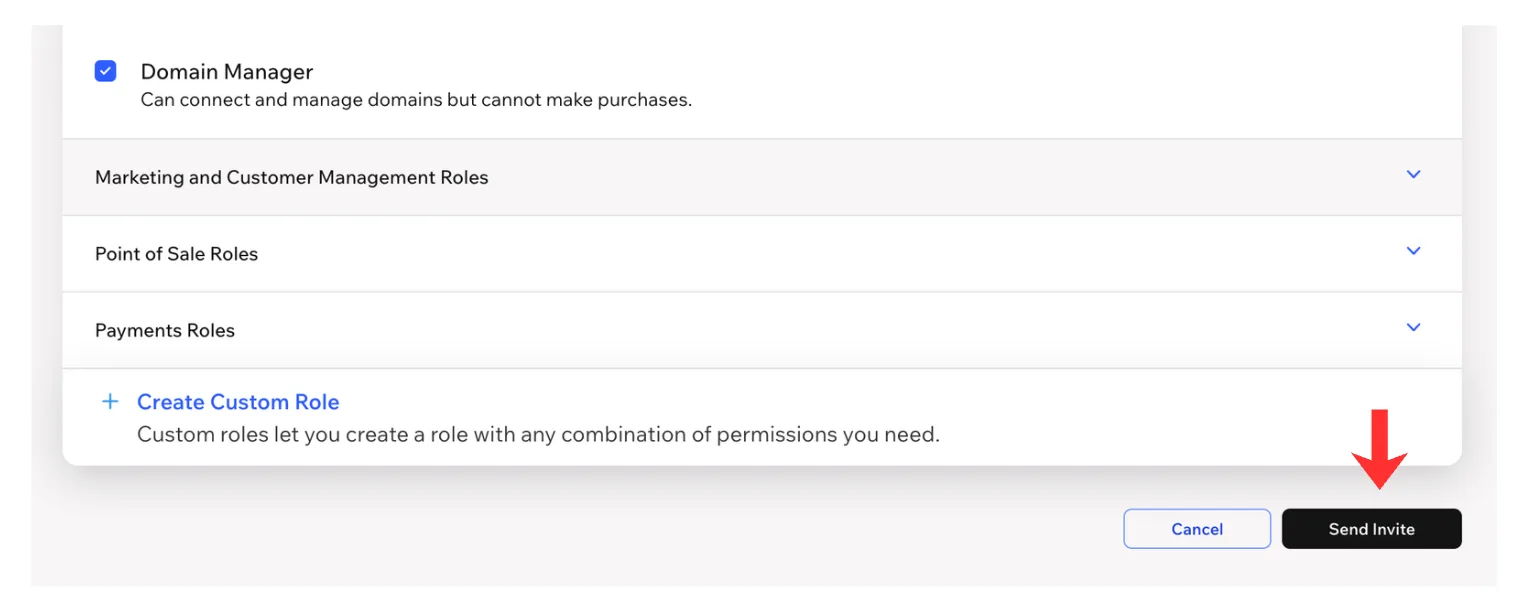
Step 7: Send Invite.
We accept the invitation and let your Growth Partner know. From there we connect the domain and confirm when the site is live; see what we change.