
Website
Custom Forms
The lead, job application, and signup forms on your site, and how to add your own.
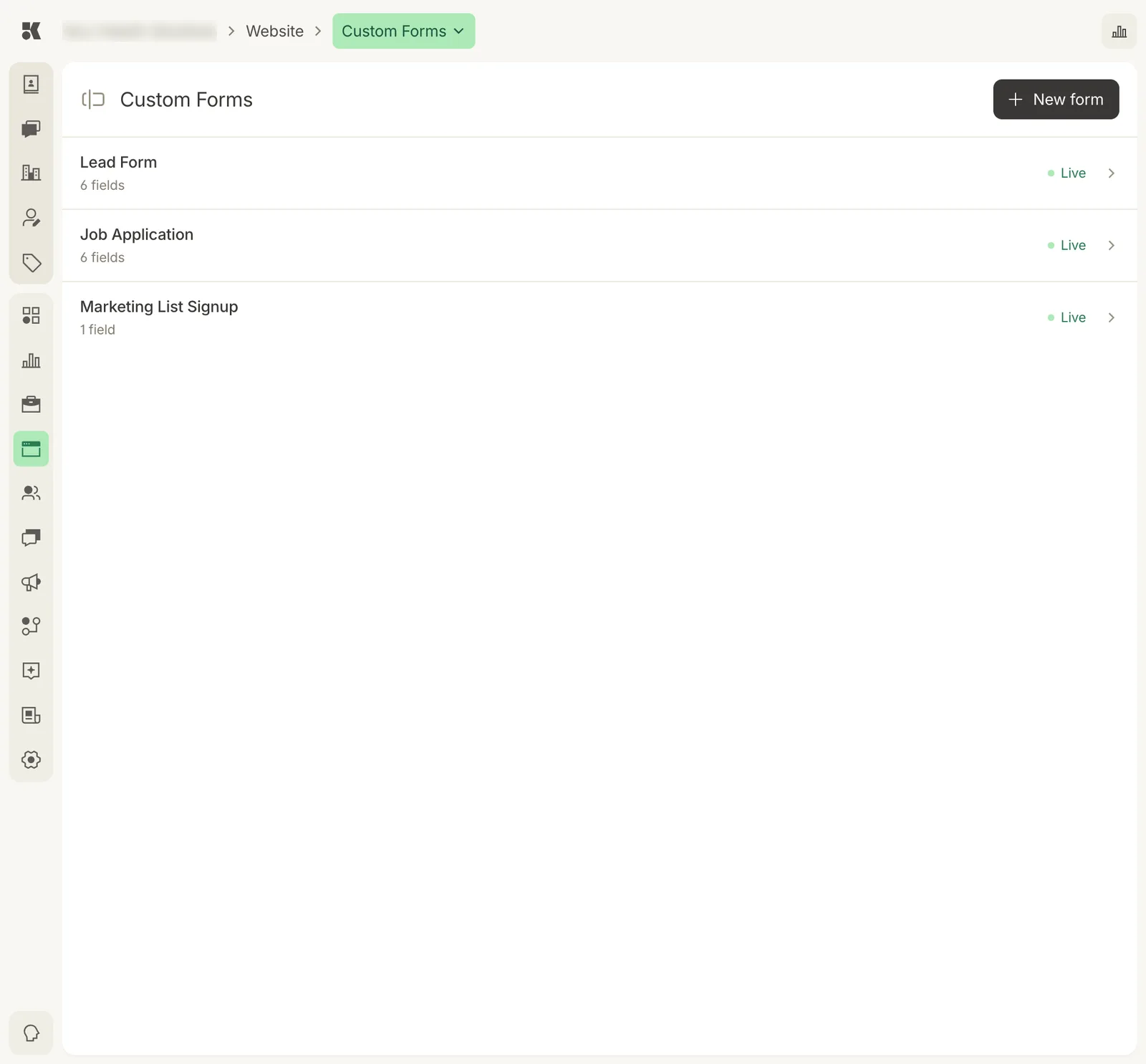
Three forms ship with every site; add more with New form.
The standard forms
| Form | Where it appears | What happens on submit |
|---|---|---|
| Lead Form | Contact page, service pages, and the booking call-to-action. | A contact is created (or matched) on the pipeline, a Workstream item is raised, and the Conversations agent follows up. |
| Job Application | The careers page for each open job. | The applicant becomes a contact tagged with the posting; a Workstream item is raised. |
| Marketing List Signup | Footer and blog. | The contact is added with marketing consent recorded. |
Fields and status
Open a form to see its fields. Each field has a label, a type (text, email, phone, choice, long text), and whether it is required. Phone and email fields are validated before submission.
A form is Live when it is published to the site, or Draft while you edit it.
Adding a form
New form creates a draft. Name it, add fields, choose where it appears, and publish. Ask the Website Editor to place it ("put the event inquiry form on the parties page").