
Workstream
Working an item
Open an item, read what the agent did, and ask for changes or approve it.
Select any card in the feed and the right panel shows the item in full.
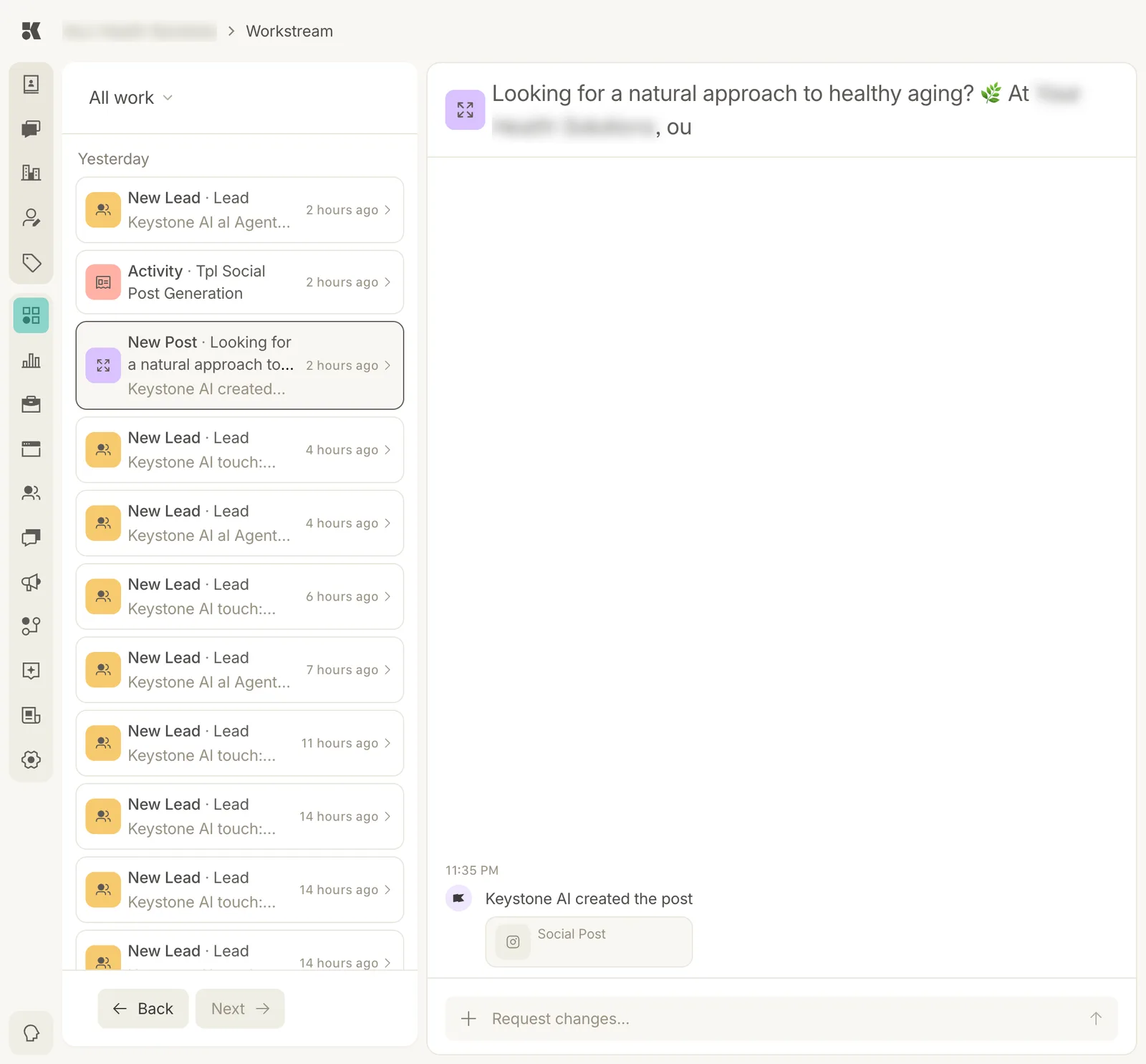
A drafted post opened from the feed. The timeline at the foot records what happened; the box below it takes your request.
The parts of an item
- Title: what the item is about, for a post the opening line of the post.
- Preview: the thing itself where there is one: the post, the page, the message.
- Timeline: who did what and when ("Keystone AI created the post, 11:35 PM"), with a chip linking to the object in its own area.
- Request changes…: a box for your instructions.
Responding
Type into Request changes… and send. Be specific: "shorter, drop the emoji, mention the October offer". The agent revises and the item updates in place; a new timeline entry records the revision.
Items marked Needs input stay in the Needs input view until you respond or the agent's question is answered another way (for example, you edit the post directly in Social).
Moving through items
Back and Next at the foot of the list step through the feed without returning to the top. The selected card is outlined.