
Connecting Meta
Accepting the Keystone app request
Accept the tester invitation we send to your Meta developer account.
Once we have your profile ID, we invite your developer account to the Keystone app on Meta. You accept the invitation in your developer settings.
- Log in at developers.facebook.com.
- Open My Apps at the top of the page.
- Open your profile menu at the top right.
- Click Pending App Request.
- On the Requests page, find the request from Keystone and click Accept.

Step 2: My Apps.

Step 3: your profile.
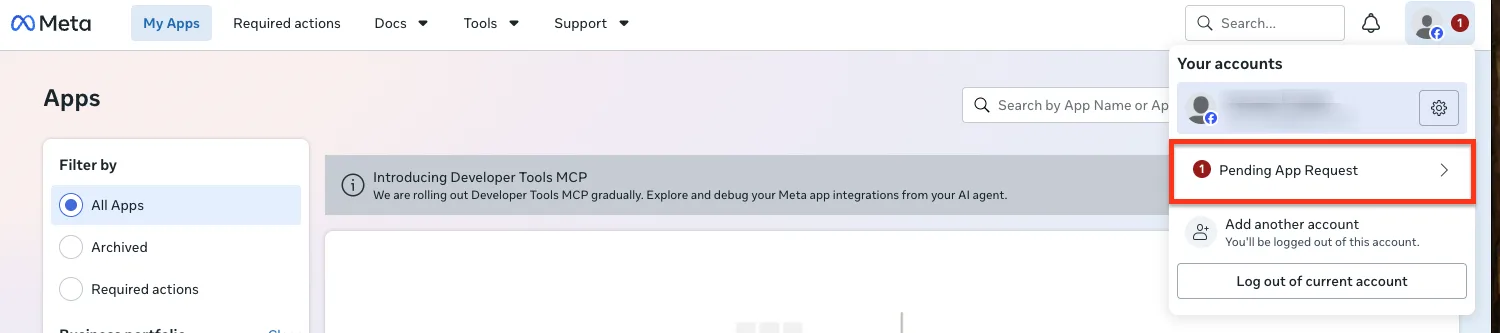
Step 4: Pending App Request.
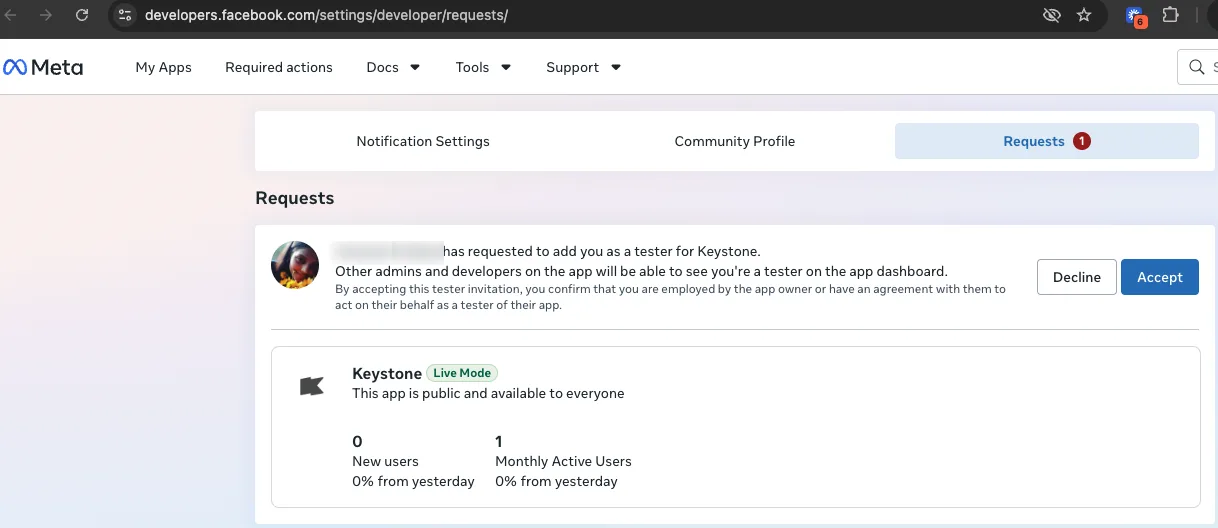
Step 5: Accept.
Nothing else changes in your account. Being a tester on the Keystone app is what allows the console to connect your Pages and ad accounts in the next steps: Connecting Facebook and Instagram and Connecting Meta Ads.