
Connecting Meta
Connecting Meta Ads
Connect the ad account and pixel in the console so Keystone can run campaigns and track conversions.
This connects the ad account and dataset you created for Keystone to the console. It uses the same Meta login as the social connection, so complete the developer account and app request steps first.
- Sign in to the console and open Settings (the gear icon in the left rail), then Integrations.
- Under Meta Ads, click Connect.
- In the Meta window, select the business portfolio that holds your ad account and Page, and click Continue.
- Click Continue on the next panel.
- Choose the Pages that apply and click Continue.
- Choose the ad account you want Keystone to use (for example
LA Cupcakes_Keystone) and click Continue. - Choose the pixel (the dataset you created) and click Continue.
- Choose your business's Instagram account and click Continue.
- Click Save, then Got it. You are returned to the console.
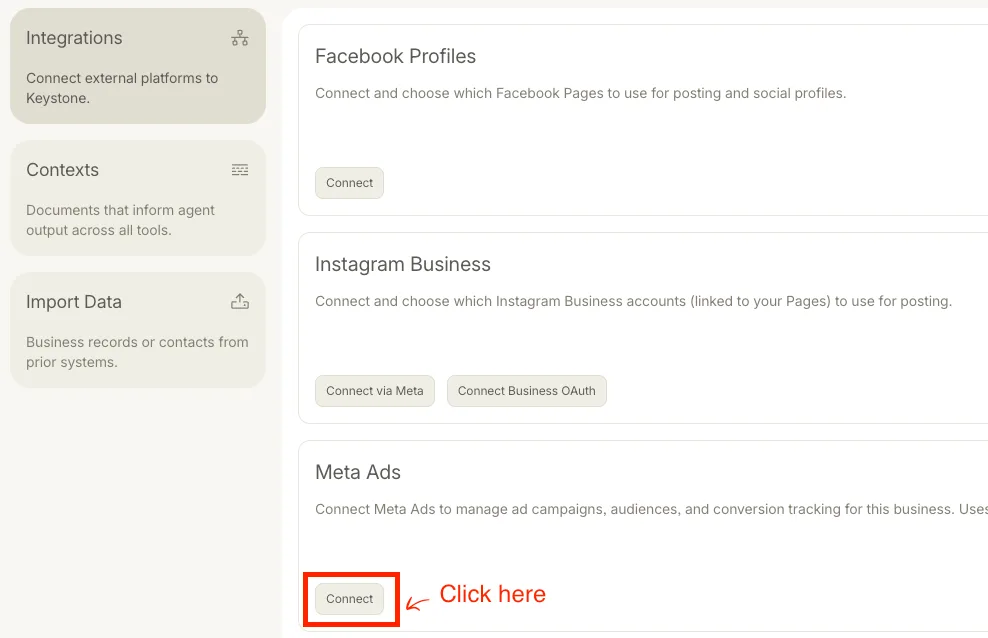
Step 2: Connect under Meta Ads.
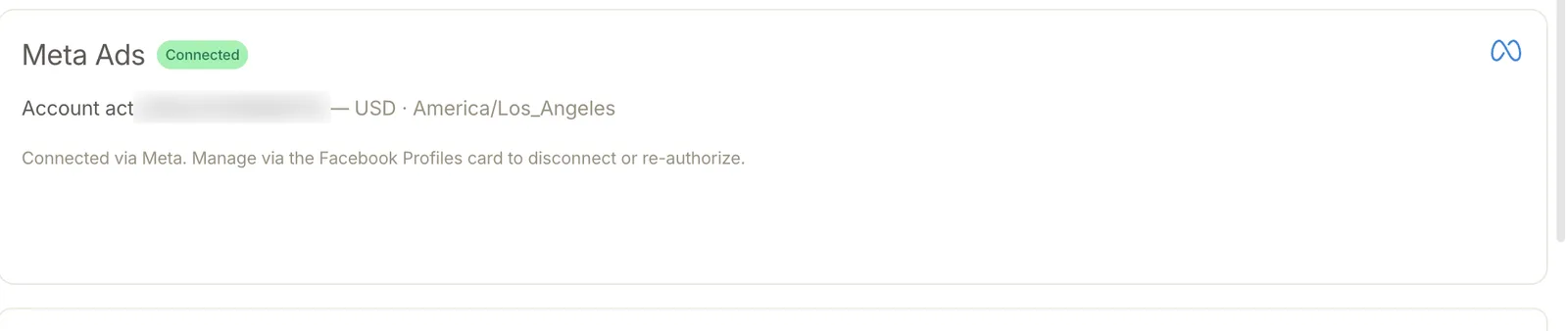
Connected: the account, its currency, and time zone.
When the Meta Ads block shows Connected, the platform imports any existing campaigns into Ads and the Meta Conversions API block becomes available for conversion tracking from your website. The pixel's state also appears on Website → Status.
Finally, add Keystone as a partner on the portfolio so campaigns can be managed day to day.