
Connecting Meta
Connecting Facebook and Instagram
Connect your Facebook Page and Instagram account in the console so Keystone can post on your behalf.
With your developer account registered and the app request accepted, the connection itself takes a minute in the console.
- Sign in to the console and open Settings (the gear icon in the left rail), then Integrations.
- Under Facebook Profiles, click Connect.
- In the Meta window that opens, select the business portfolio that holds your Page and click Continue.
- Click Continue on the next panel.
- Select the Pages you want Keystone to post to and click Continue.
- Select the Ad accounts to share (the one you created for Keystone, if you have one) and click Continue.
- Select the Pixels for this account and click Continue.
- Select the Instagram accounts you want Keystone to post to and click Continue.
- Click Save, then Got it.
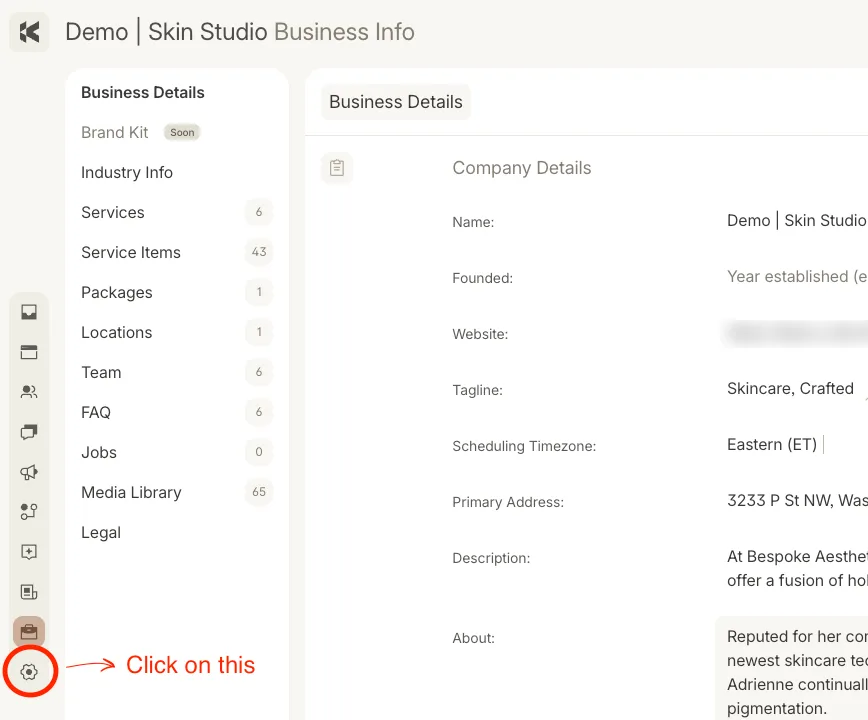
Step 1: the Settings gear.
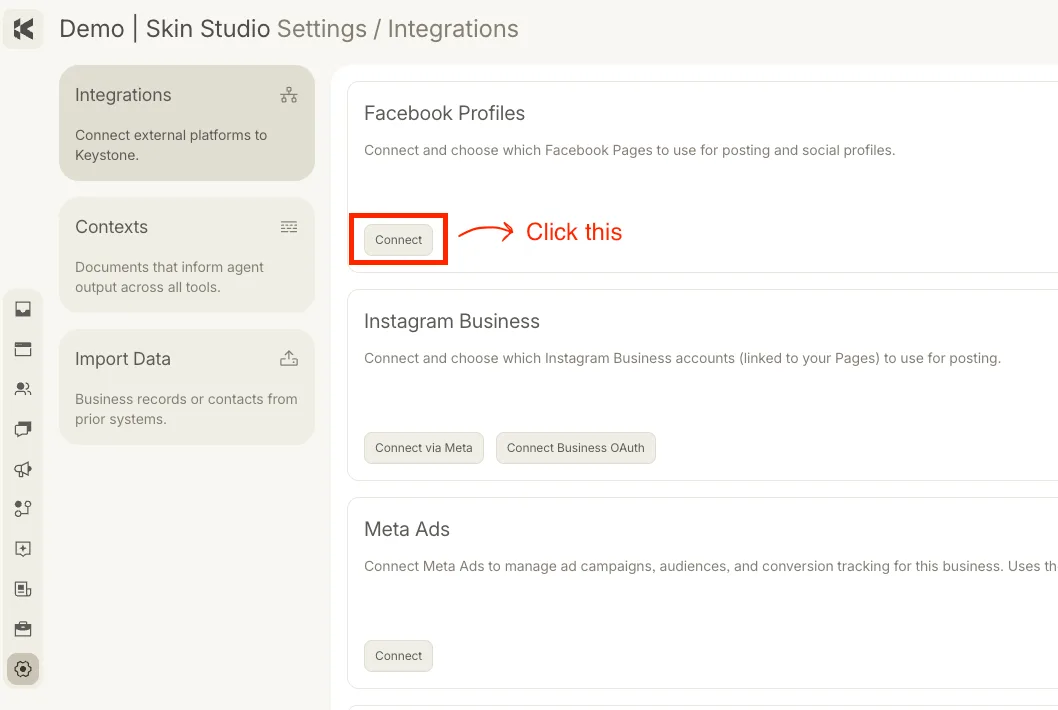
Step 2: Connect under Facebook Profiles.
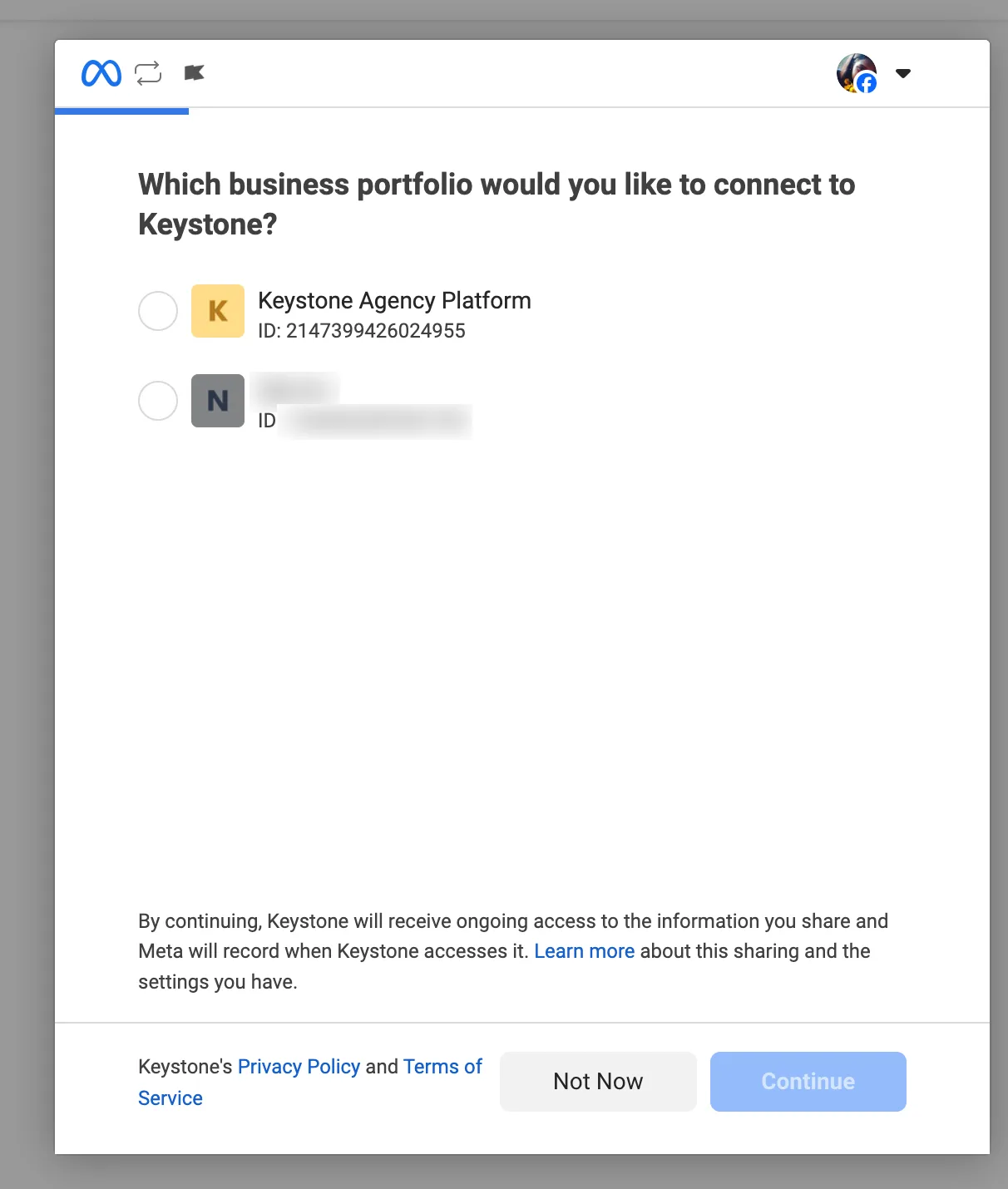
Step 3: your business portfolio.
When the window closes, the Facebook Profiles and Instagram Business blocks show Connected with your Pages and accounts listed. The Social agent can now draft and schedule posts for them.