
Connecting Meta
Creating a Meta developer account
Register the Facebook account that owns your business Page as a developer, link Instagram if needed, and send us your profile ID.
To connect your Facebook Page and Instagram to Keystone, the Facebook account that owns your business Page needs to be registered as a developer with Meta. It takes a few minutes and does not change anything about your Page.
Register as a developer
- Go to developers.facebook.com and click Login at the top right.
- Click Continue with Facebook and log in with the Facebook account that owns your business Page.
- Click Get Started at the top right.
- A panel opens. Click Continue.
- Select your country code, enter your mobile number, and enter the verification code sent to your phone.
- Check the box to confirm your email address.
- Under Which of the following best describes you? select Developer, then click Complete Registration.
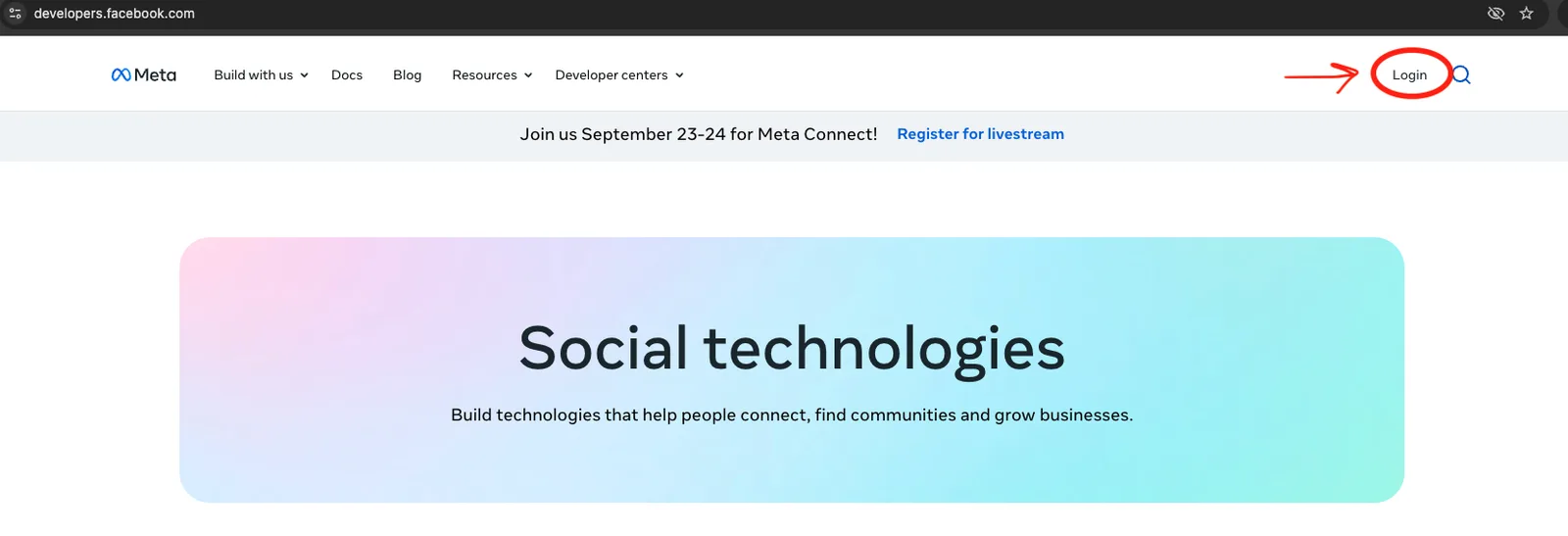
Step 1: Login.
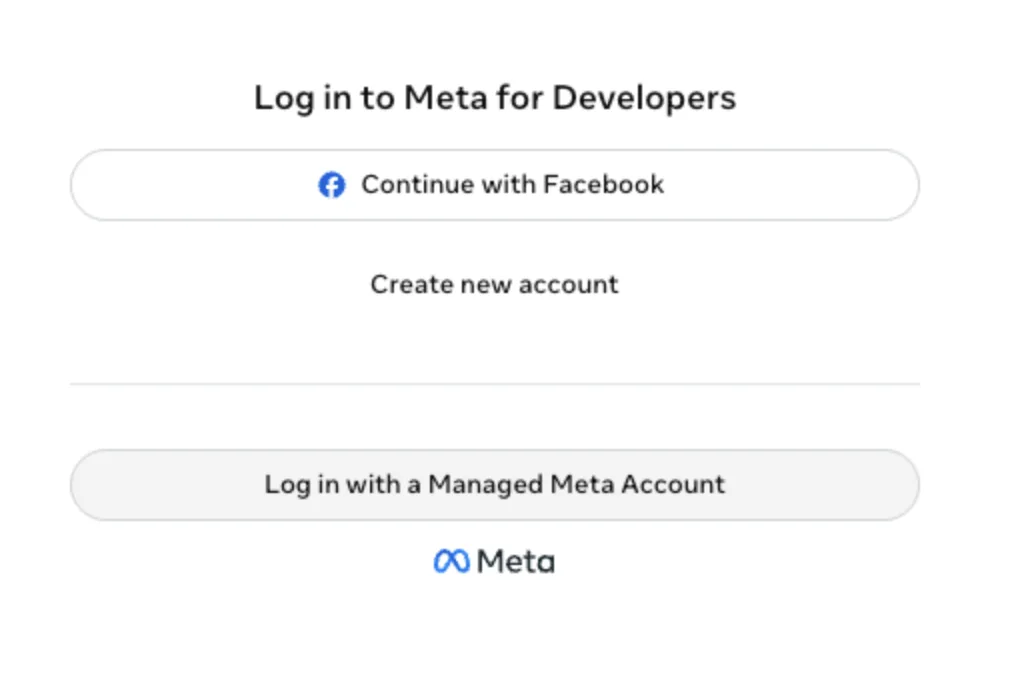
Step 2: Continue with Facebook.
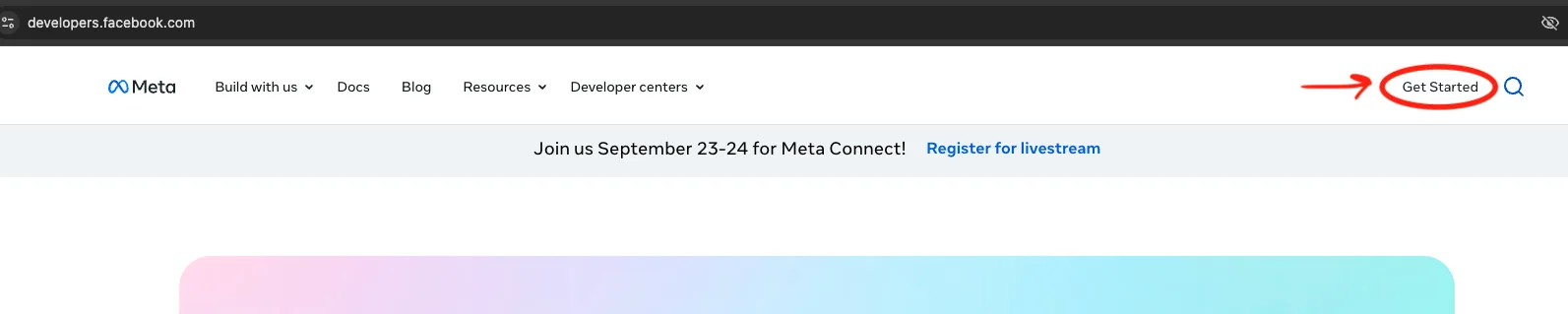
Step 3: Get Started.
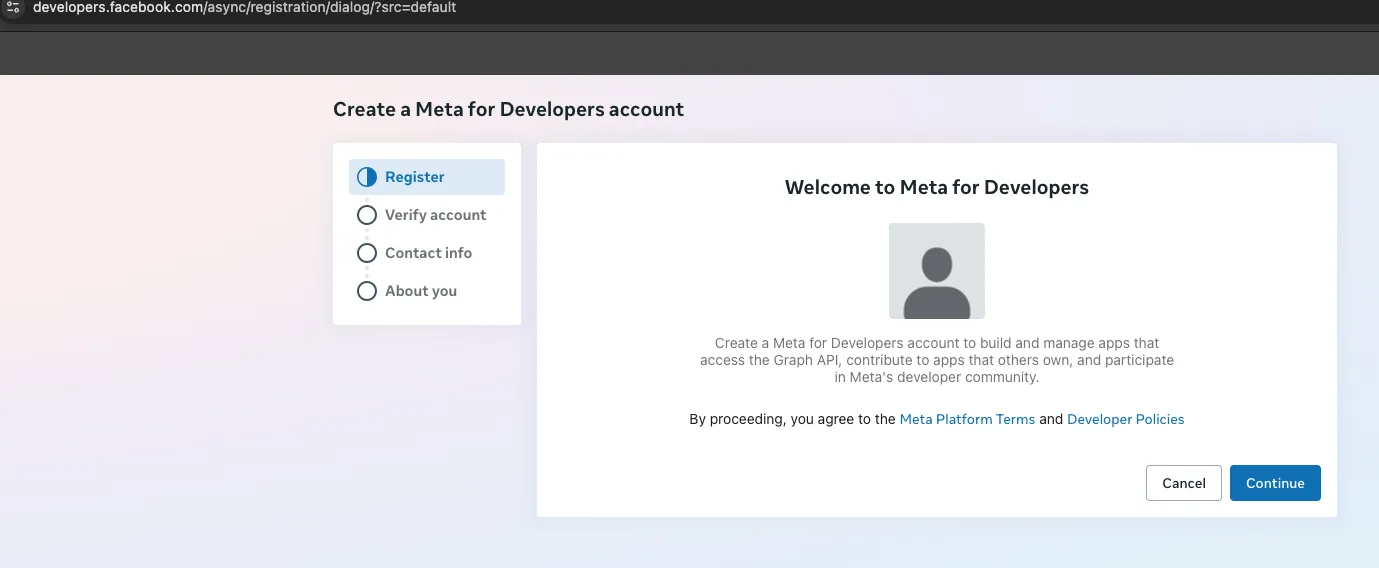
Step 4: Continue.
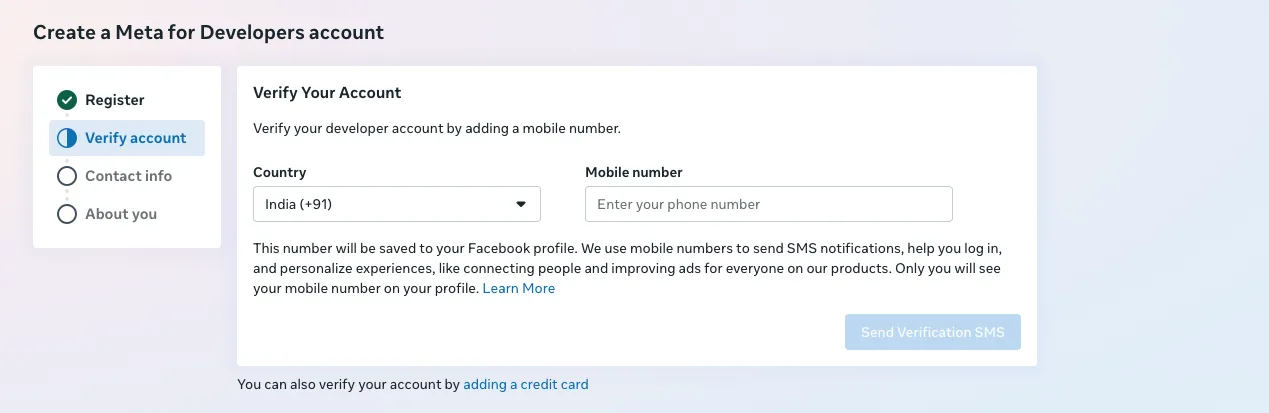
Step 5: your mobile number.
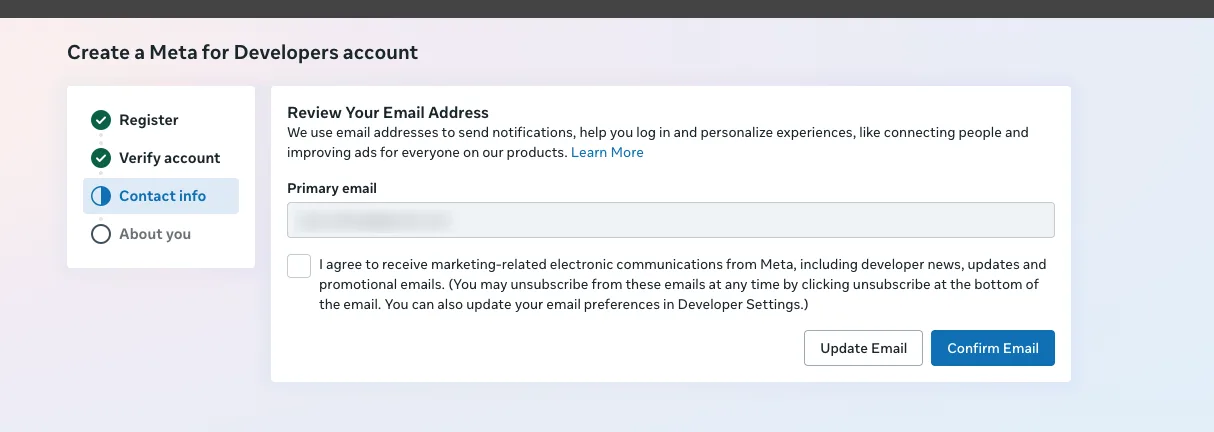
Step 6: confirm your email.
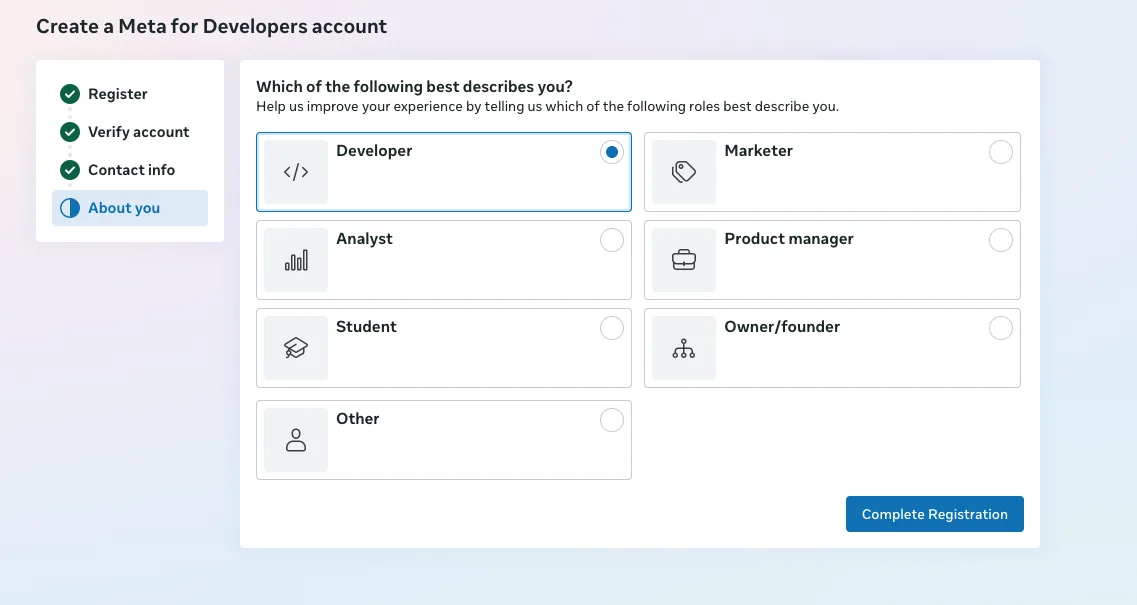
Step 7: Developer, then Complete Registration.
If your Instagram is not linked to Facebook
For Instagram posts to run through the platform, your Instagram account has to be linked to the same Facebook profile. If it is not yet, link them in Accounts Centre.
- Go to accountscenter.meta.com and click Continue with Instagram.
- Log in with your Instagram credentials and enter the verification code.
- Click Allow and Continue.
- Fill in your name and click Next, then check the box on the next panel and click Create Account.
- Click Add Accounts, then Facebook Account, and log in to Facebook when prompted.
- Click Continue as [your name], then Confirm.
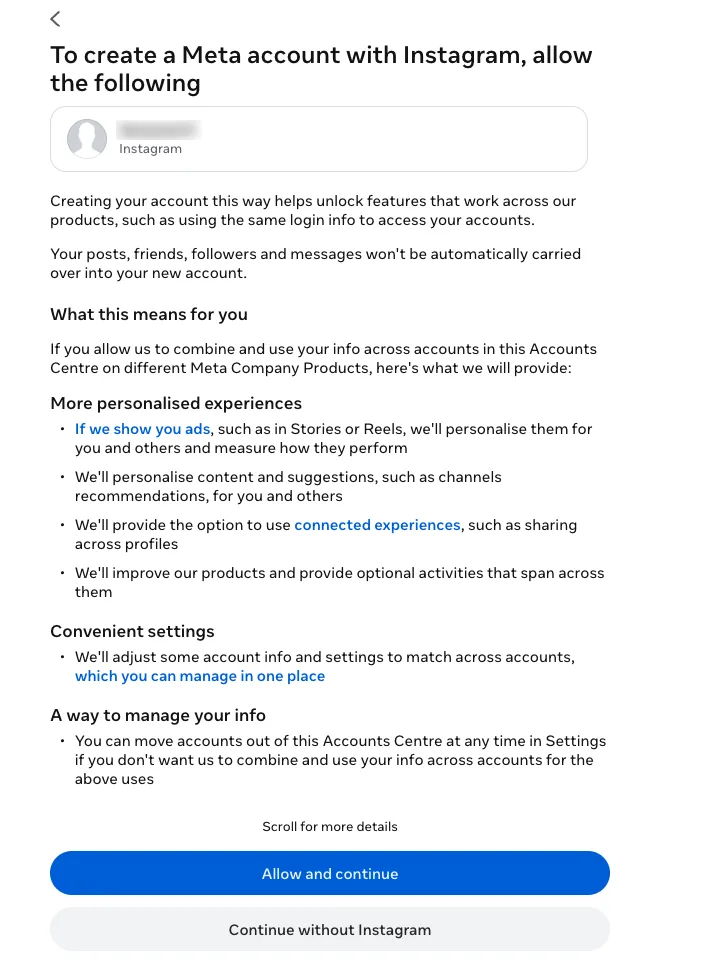
Step 3: Allow and continue.
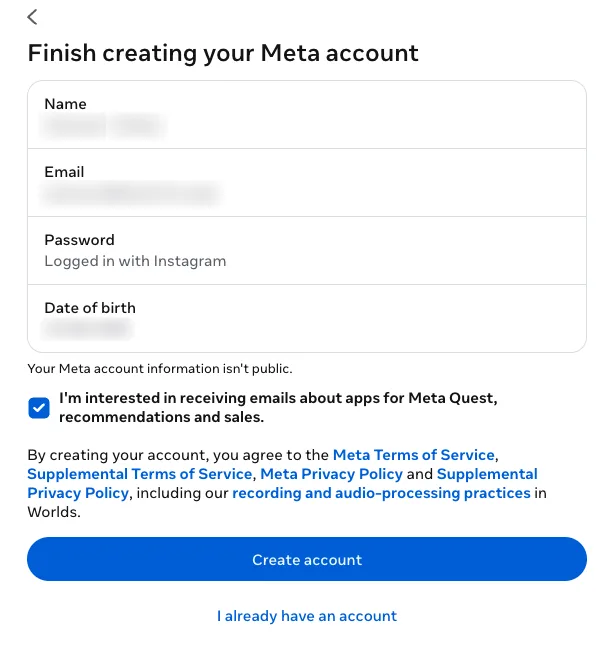
Step 4: Create Account.
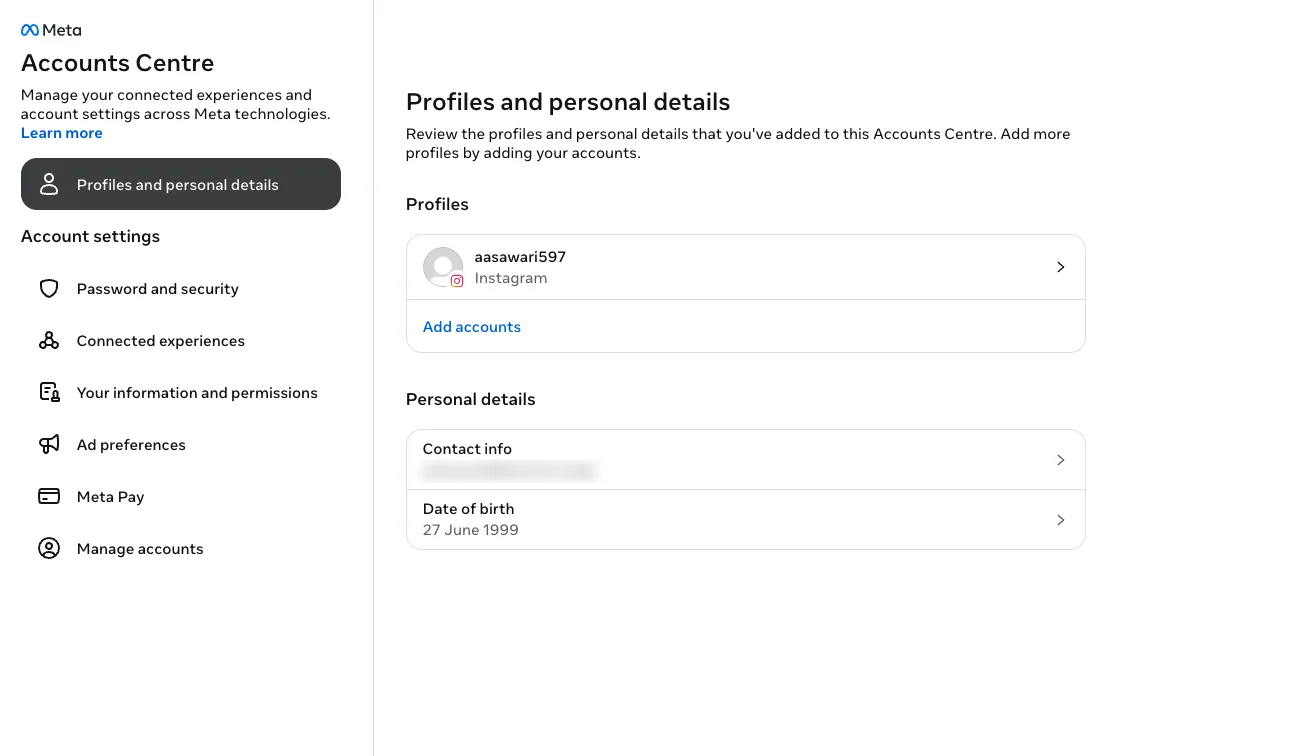
Step 5: Add accounts.
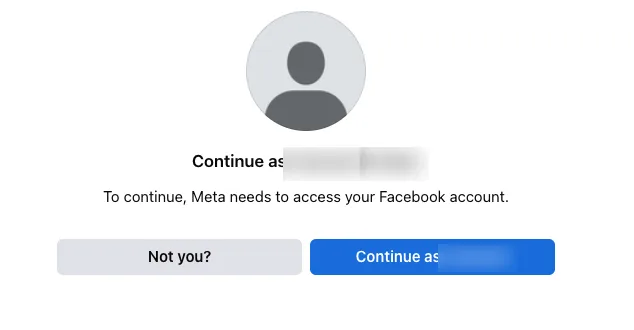
Step 6: Continue as yourself.
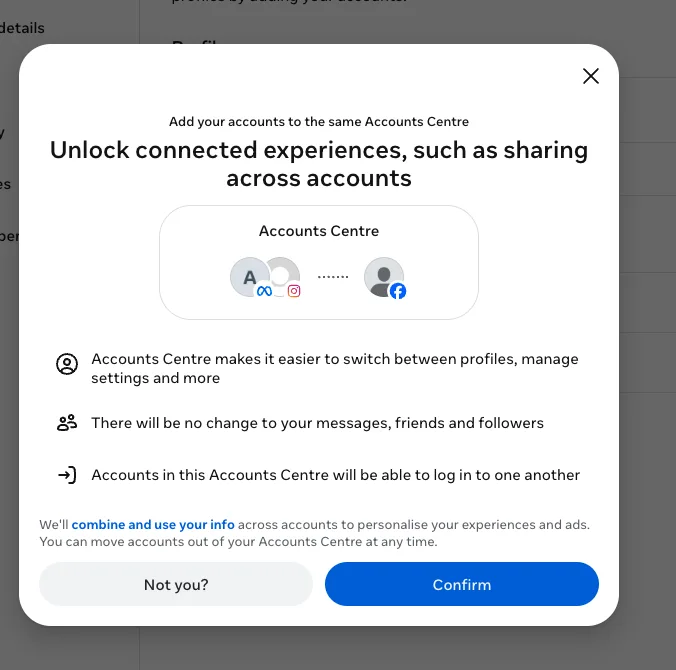
Step 6: Confirm.
Send us your profile ID
Open your Facebook profile and look at the URL in your browser. It ends in id= followed by a string of numbers. Copy that number and send it to your Growth Partner. We use it to send the app request to the right account.
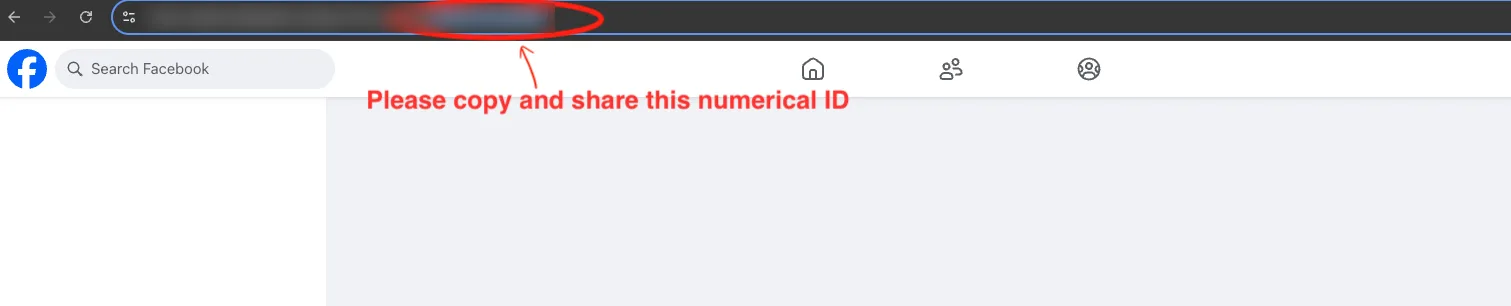
The number after id= in your profile URL.