
Conversations
Conversations
Every iMessage, SMS, web chat, and email thread in one inbox, with the ones that need you first.
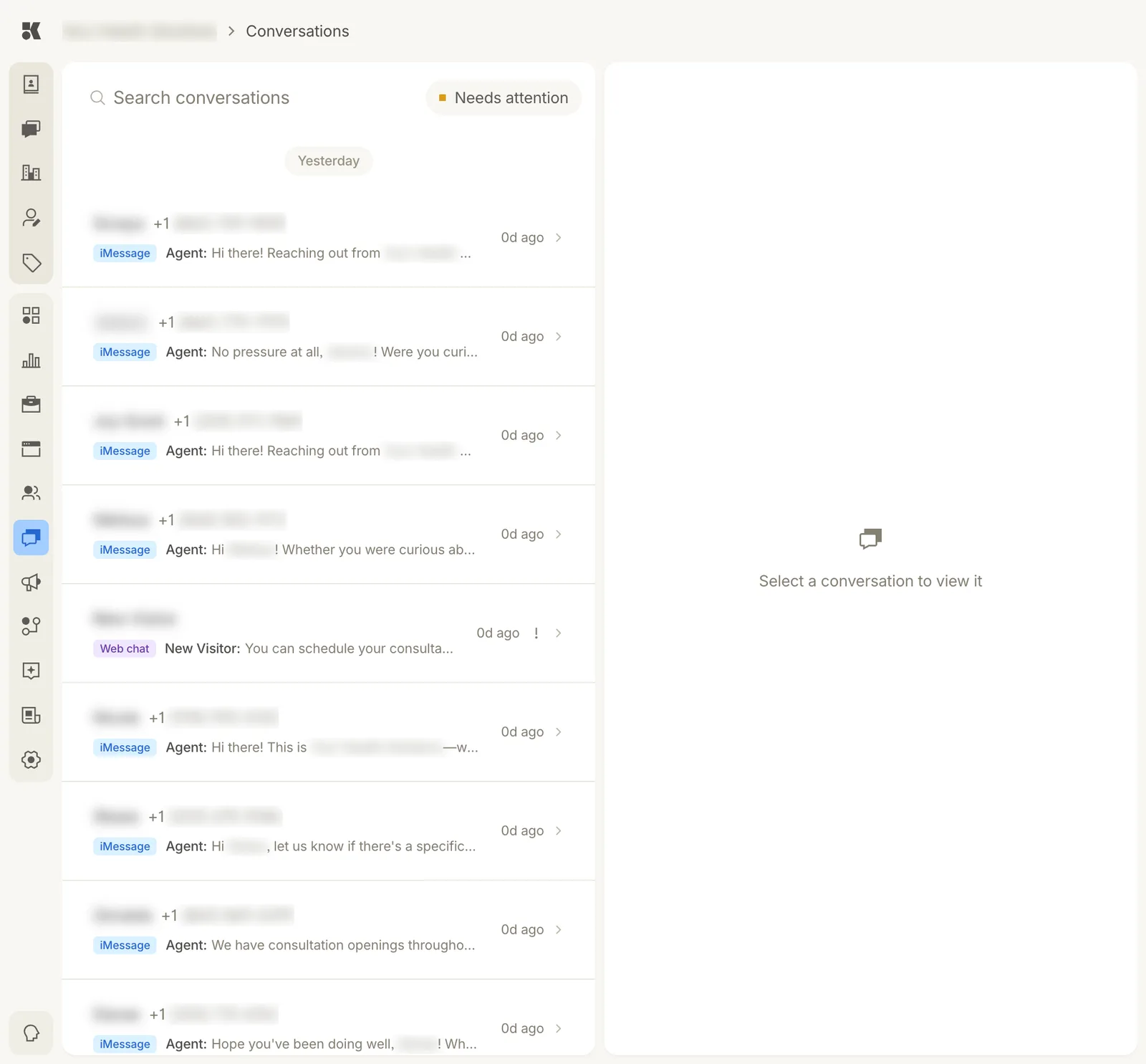
Threads on the left, newest first. Pick one to read it.
The list
One row per thread. Each shows the contact (or New Visitor for an anonymous web chat), the channel chip, the latest message with who sent it (Agent for the Conversations agent), and its age. Needs attention at the top filters to threads where the agent has stopped and is waiting for you; the ! on a row marks the same thing.
Search matches names, numbers, and message text.
Channels
| Chip | What it is |
|---|---|
| iMessage / SMS | Texts to and from your business number. |
| Web chat | The chat on your website. Visitors who have not identified themselves show as New Visitor. |
| Mail to your business address, where connected. | |
| Phone | Calls answered by the voice agent, shown as a transcript. |
Reading and replying
Click a row. The thread opens on the right with the same composer as the contact view; the contact card is one click away via the name. Sending a message from here pauses the agent on this thread until you mark it handled.
What the agent says
It answers from Business Info: services, prices from items and packages, hours from locations, policies from the FAQ. It follows the instructions under Settings → Agents. It will not quote a price that is not on an item, promise an appointment time, or answer a medical dosing question; those become Needs attention.